Set up reading and sending languages on X, check translated drafts, and choose when to turn automatic translation off.
Review X Chat Translator’s features
Install and choose your languages
- Install X Chat Translator from the Chrome Web Store. Refresh any open X tabs, then open X Chat.
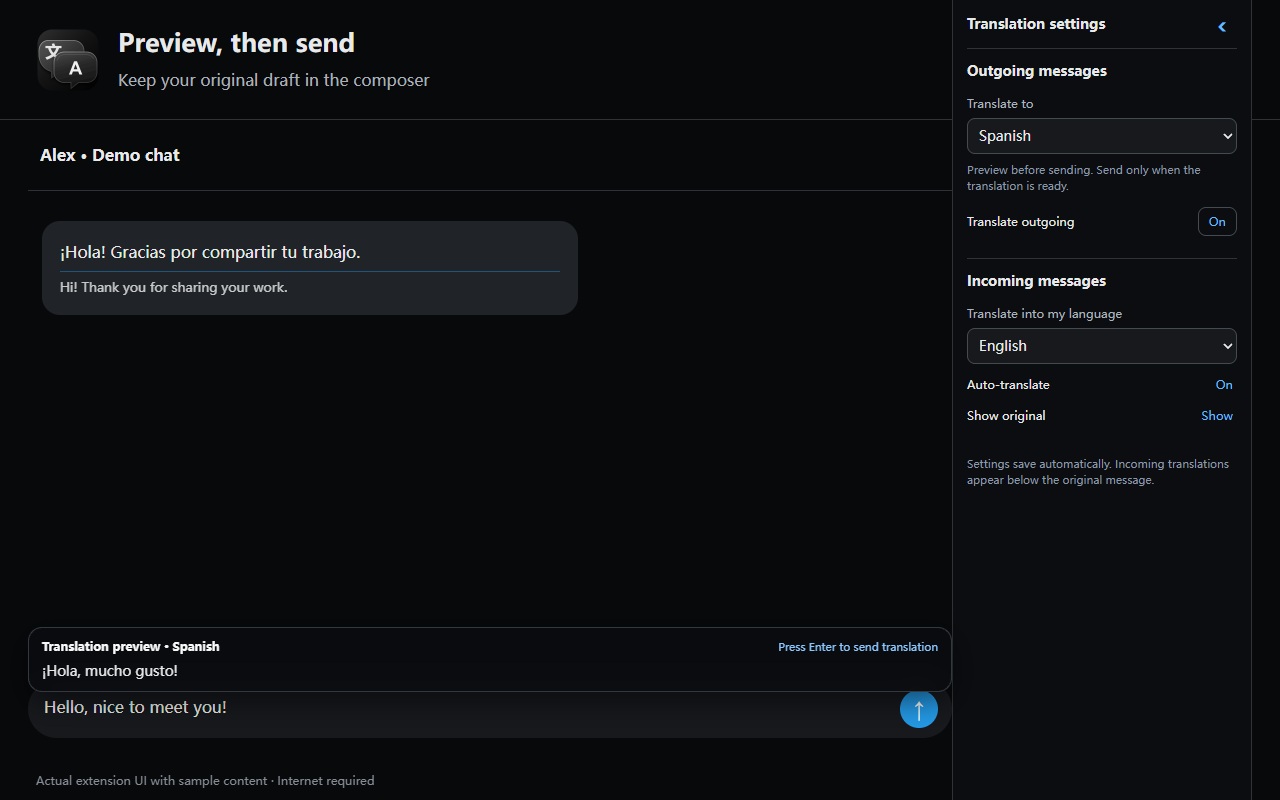
- In the chat sidebar, choose the language for outgoing messages. The extension remembers this choice for each conversation.
- Choose your reading language and whether to translate incoming messages automatically. Use the Chrome toolbar popup to manage post translation.
Interface and translation languages
The extension follows your browser language. Its interface is available in English, Simplified Chinese, Latin American Spanish, Japanese and Korean, with English as the fallback. Translation targets include English, Simplified Chinese, Spanish, Japanese, Korean, French, German, Portuguese, Arabic and Russian.
Review the translation and send
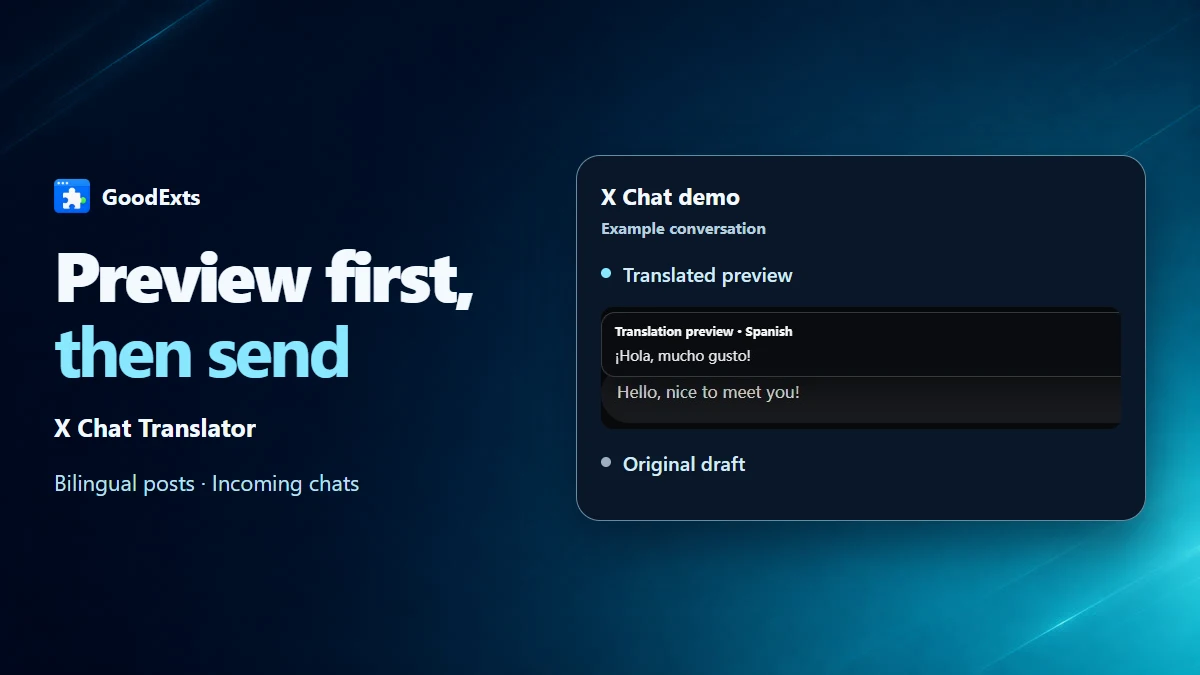
Type a text message and wait for the preview above the composer. Check the translation, then press Enter or click Send. The translation is sent and the draft clears after a successful send. If sending stalls, check the conversation before retrying. Turning off outgoing translation restores sending the original text.
Read bilingual posts and incoming chats
Turn on post translation in the Chrome toolbar popup and choose a reading language. As you scroll Home or For you, the extension translates newly visible text. It also works on supported post detail and reply views. The translation appears below the original. Long posts are translated in segments, and failed translations show a Retry button.
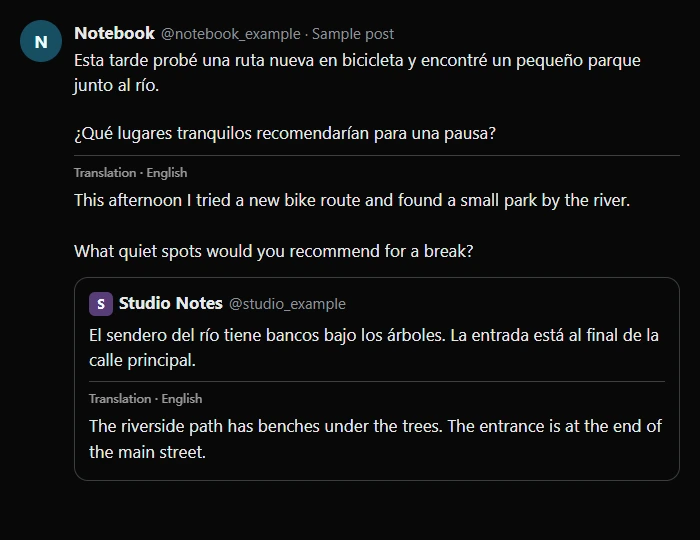
In X Chat, turn on automatic translation for incoming messages. The reading language is shared with posts. Use Show original to choose a bilingual view or show just the translation once it is ready.
Follows X’s appearance
The chat preview and settings follow X’s Light, Dim and Lights Out themes. Collapse the right sidebar with its arrow to make room for the conversation, then reopen it from the translation icon. Post translations inherit the surrounding text style.
If translation or sending stalls
If a preview fails to load, retry the translation. Editing the draft, changing the sending language or switching chats invalidates the previous preview. Wait for the new one before sending.
Translated sending supports new text-only messages. Attachments, replies, edits and forwards use X’s native workflow. If a message format is unsupported or an X update changes how sending works, the extension pauses translated sending and keeps your draft. Turn off outgoing translation to send the original through X.
If the result is unconfirmed, check the conversation before sending again.
Privacy and supported content
Enabled features send the relevant post, incoming message or draft text to Google Translate. Translation requires an internet connection. The extension handles text and leaves image text and video subtitles untouched.
Settings are stored in Chrome. The extension keeps a temporary translation cache in page memory and clears it on refresh. It has no developer-operated data server or analytics. Turn off automatic translation before viewing or typing text you want to keep from the translation service.