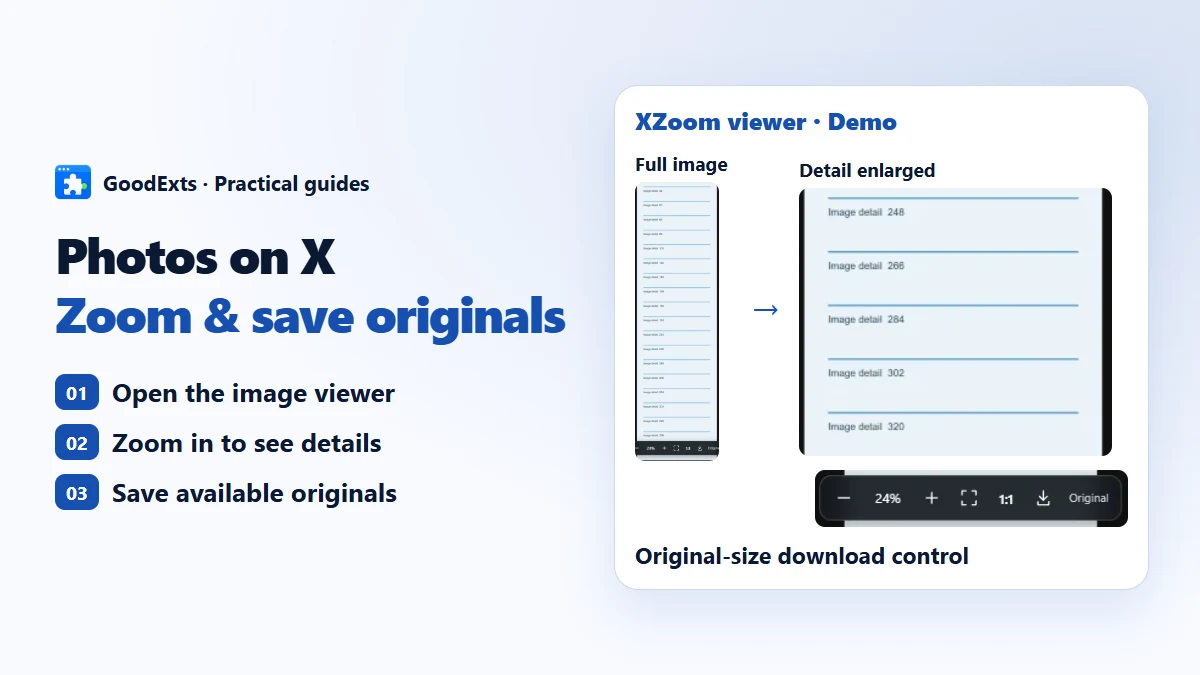
Tall screenshots and detailed photos can be hard to read in X’s default preview. XZoom adds a compact toolbar to that preview, so you can zoom without leaving the post.
- Open source
- No tracking
- No AI connection
XZoom permissions & network requests
XZoom adds controls only on x.com and twitter.com. It has no background service or analytics. Opening a post photo requests the image from pbs.twimg.com; it is not a fully offline tool.
These statements describe XZoom. This website has separate analytics and cookie preferences. Website privacy
A closer look, in the same preview
Centered zoom
Use the mouse wheel or + / −. Zoom stays centered in the image viewing area, regardless of pointer position, up to 800%.
Read the details
Drag an enlarged image. Choose 1:1 for actual pixels or Fit to return to the whole image. X’s close button and post details remain available.
Available originals
Opening a photo requests its name=orig image from X’s image CDN. The original can be downloaded when available. If it fails, the preview stays usable and a retry button appears.
Original means the largest image X currently provides, not the camera file before upload. Some previews already have the same dimensions. Zoom cannot restore detail that is absent from the source.
Install in Chrome with developer mode
Download and extract
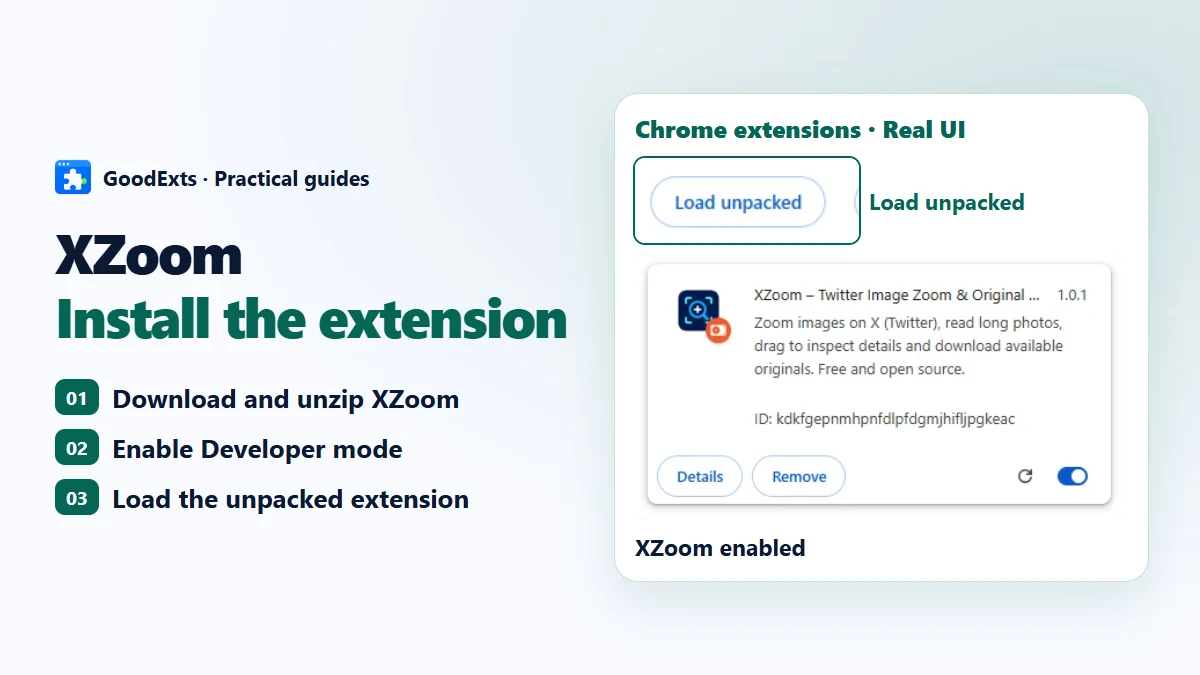
Download xzoom-1.0.1.zip and extract it to a permanent folder. Open that folder: manifest.json should be directly inside it. Keep the folder after installation.
Open extension management
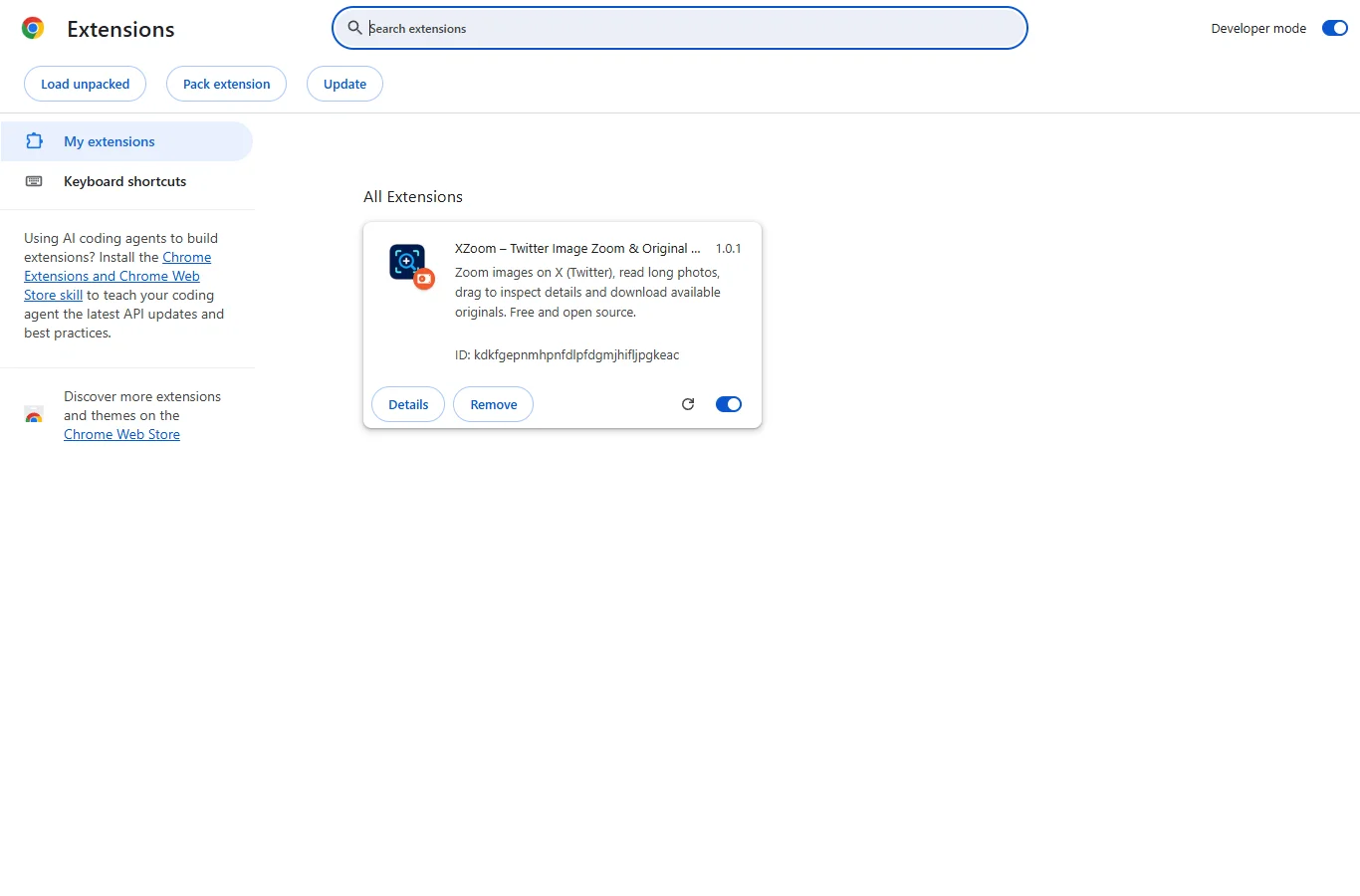
Type chrome://extensions into Chrome’s address bar. Turn on Developer mode at the top right. This is Chrome’s extensions setting, not ChromeOS Developer Mode.
Load the extracted folder
Click Load unpacked and choose the folder containing manifest.json. Choose the extracted folder, not the ZIP file. The XZoom 1.0.1 card should appear with its switch on.
Open an X photo
Refresh an existing X page once after installing, or open a new X tab. Click a photo in a post. The zoom toolbar appears in the native photo preview; it does not appear on the ordinary feed.
Controls at a glance
| Control | Action |
|---|---|
| Wheel / + / − | Zoom in or out around the center |
| Drag | Move the enlarged image |
| Fit / 0 | Fit the whole image to the window |
| 1:1 | Show actual image pixels |
| Download arrow | Save the loaded original |
| Double-click | Switch between fit and actual size |
Small scope, no account setup
XZoom runs only on x.com and twitter.com. It has no background service, account database, AI connection, analytics or tracking. It requests the viewed photo from pbs.twimg.com only while the preview is open. Chrome still requires access to matching X pages so the controls can be added.
XZoom is an independent GoodExts tool and is not affiliated with X Corp. It does not post, follow or comment.
Update and troubleshoot
No toolbar?
Make sure XZoom is enabled, refresh the X page, and open a post photo. Videos, avatars and the normal timeline are outside its scope.
Could not load manifest?
Select the folder with manifest.json directly inside. If you downloaded the GitHub source archive instead of the ready ZIP, choose its dist folder.
Original unavailable?
Keep using the preview or retry. Deleted, protected or unavailable media may not have a downloadable original.
How do updates work?
Unpacked installations do not update automatically. Download a new version, replace the files in the same permanent folder, click Reload on the XZoom card, then refresh your X tabs. Remove XZoom from chrome://extensions to uninstall.
Official reference
XZoom
Tall screenshots and detailed photos can be hard to read in X’s default preview. XZoom adds a compact toolbar to that preview, so you can zoom without leaving the post.