- Open source
- No tracking
- No AI connection
XZoom permissions & network requests
XZoom adds controls only on x.com and twitter.com. It has no background service or analytics. Opening a post photo requests the image from pbs.twimg.com; it is not a fully offline tool.
These statements describe XZoom. This website has separate analytics and cookie preferences. Website privacy
Zoom a Twitter image without enlarging the whole page
Open the post photo
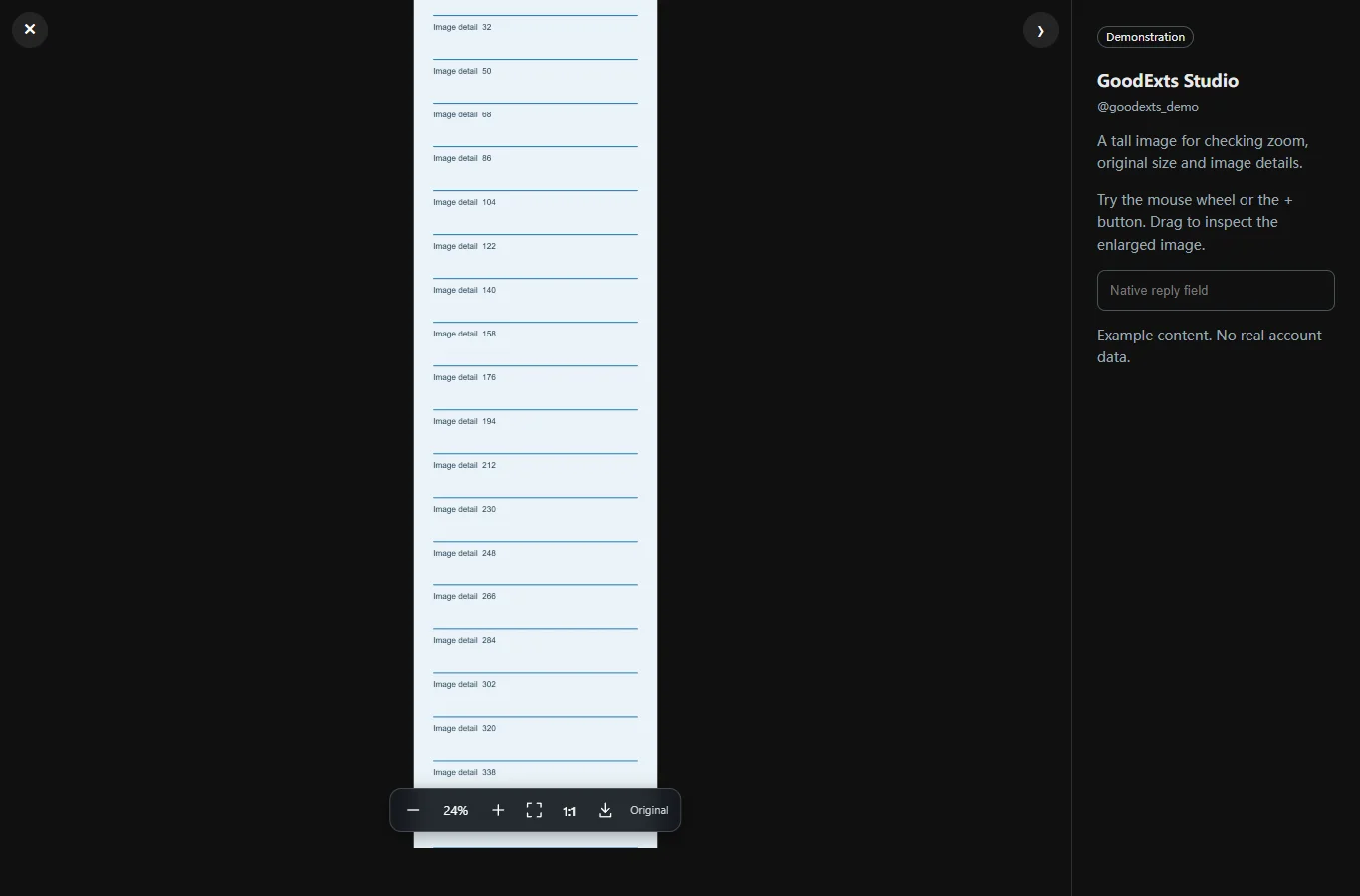
Click a photo in a post to enter X’s native photo preview. XZoom adds its controls there; the ordinary timeline, videos and avatars are outside its scope.
Use 1:1 for small text
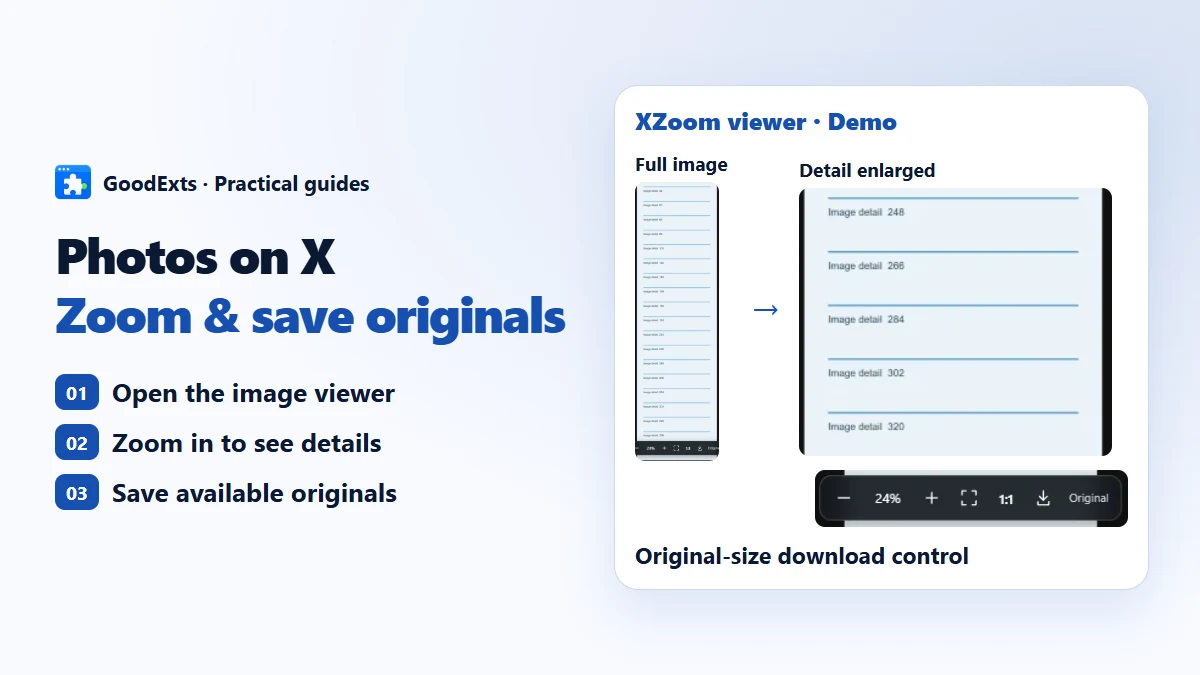
Choose 1:1 to display the loaded image at its actual pixel size. Use the wheel or + / − to adjust the view, then drag to move across a tall screenshot or a wide diagram. Zoom stays centered in the viewing area.
Return to the whole image
Choose Fit, press 0, or double-click to switch between fit and actual size. This changes the photo view; it does not change your browser’s page zoom.
Read a tall screenshot from top to bottom
Choose 1:1 first, drag until the top of the screenshot is visible, and move down in small sections. Use Fit whenever you need to find your place. If the letters remain blurred at 1:1, enlarging them further will not recover missing text.
Download a Twitter image at the available original size
- Open the photo and let XZoom finish loading the original. It requests the current photo from X’s image CDN.
- Use the download arrow after the original is available. If loading fails, keep reading the preview or use the retry control.
- Open the saved file and check its dimensions in your image viewer. Keep the post link separately if you need the source or author later.
For a single photo without installing an extension
If your browser offers “Open image in new tab”, open the photo itself. For an X media address on pbs.twimg.com/media/, the name= parameter selects a size; name=orig requests the available original. Save only after the image loads. This does not work for every media address or restore deleted or inaccessible photos.
Original size and zoom answer different questions
| View or file | What it means |
|---|---|
| Fit | Shows the whole image inside the available viewing area. A very tall photo may have unreadably small text. |
| 1:1 | Shows the loaded image at actual pixel size. It is useful for checking whether the source contains the detail you need. |
| Original | The largest version X currently supplies. It may have the same dimensions as the preview and is not necessarily the camera file before upload. |
| More zoom | Makes existing pixels larger, up to 800% in XZoom. It does not sharpen a blurred source or generate new details with AI. |
Photo viewing questions
Why is the downloaded photo still blurry?
Check the file at 1:1. The uploaded image may already be small, compressed or out of focus. Neither a larger preview nor the original-size request can recreate information absent from the source.
Can I download an entire account’s photos?
XZoom works on the photo currently open in a post preview. It is not a profile scraper or a batch downloader.
Does this work in the X mobile app?
This guide uses desktop Chrome. XZoom does not add controls to the native iPhone or Android app.
Choose the guide for the file you need
Use XZoom for closer photo viewing. Videos and long-form text have separate workflows:
See the details, then keep the photo you need
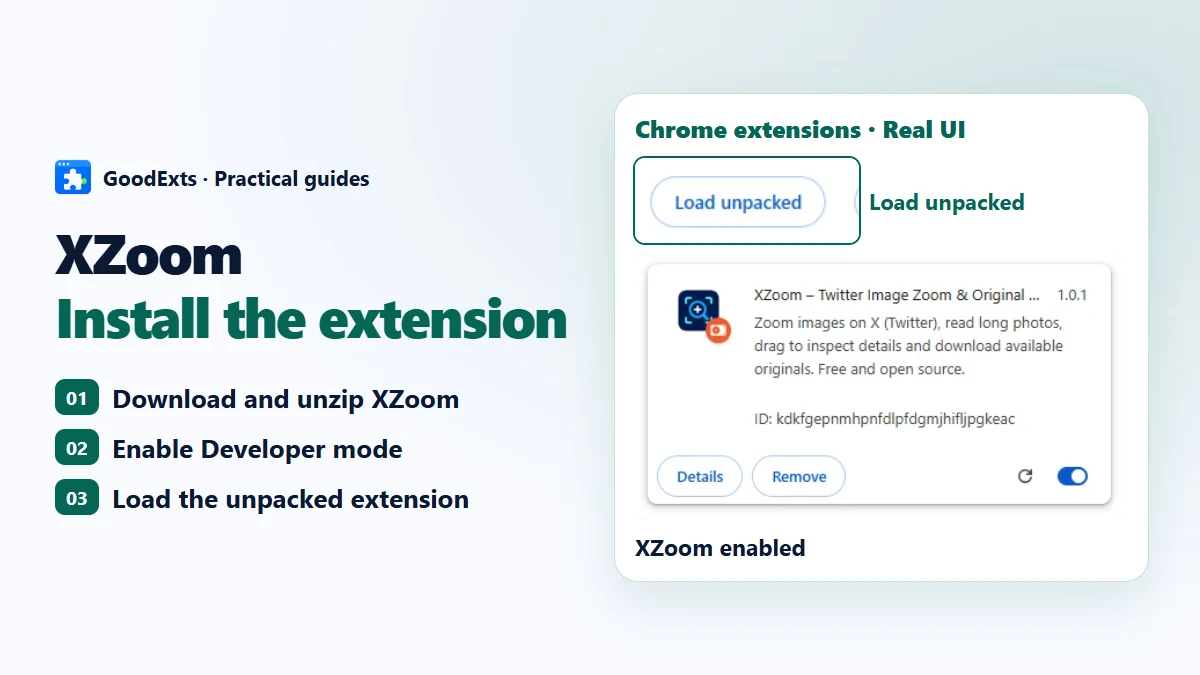
Follow the XZoom installation guide, open a post photo and try 1:1 before increasing the zoom.