XFollower organizes followers, post follow-up and writing tasks in one workspace. With AgentRelay, it can use Codex, Grok Bot or Antigravity for post classification, comments and knowledge tasks.
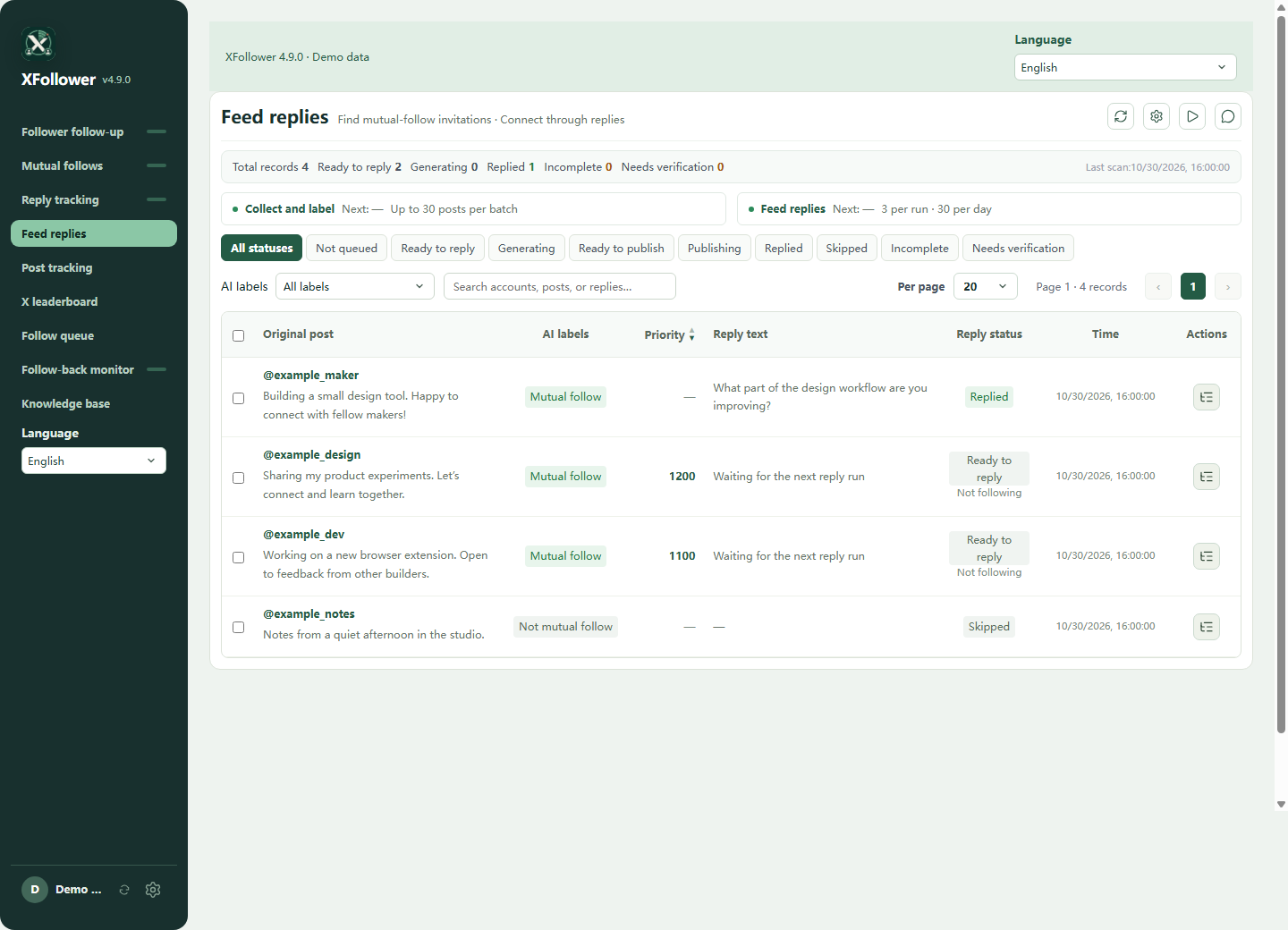
XFollower: a workspace for your daily X operations.
If you publish on X (Twitter), you also have followers to keep up with, posts worth revisiting and conversations to follow. XFollower is a Chrome extension for creators and product operators that organizes this recurring work in one workspace: account relationships, follow-up queues, posts, authors and writing knowledge.
Organize the account work
Track followers and follow-back candidates, manage follow-up queues, and keep posts and authors in view.
Keep useful posts in view
Track posts and authors, organize homepage follow-up and keep drafts and processing records alongside the original content.
Build your working knowledge
Bring content analysis and writing experience together so later tasks can use the guidance you have prepared.
Connect AgentRelay to add AI judgment and writing.
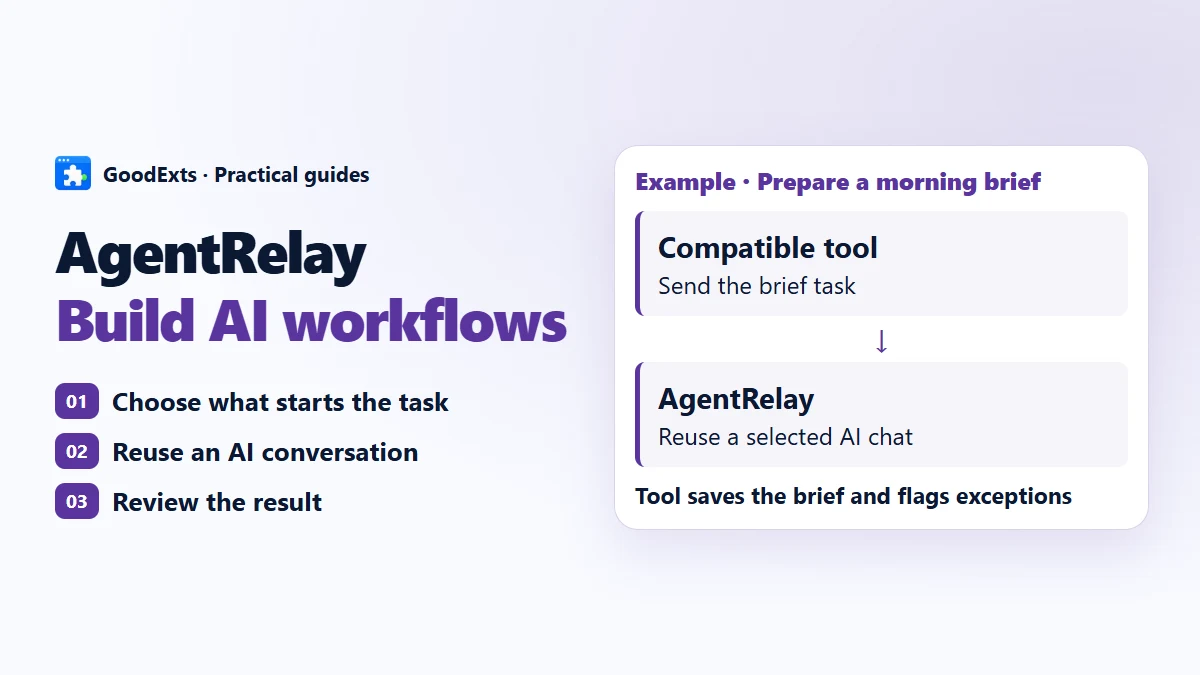
Instead of copying each post into an AI chat and bringing the answer back, let XFollower collect and organize the work. AgentRelay sends AI tasks to the selected conversation; XFollower keeps the classification, draft and follow-up record together.
One connection. A conversation for each job.
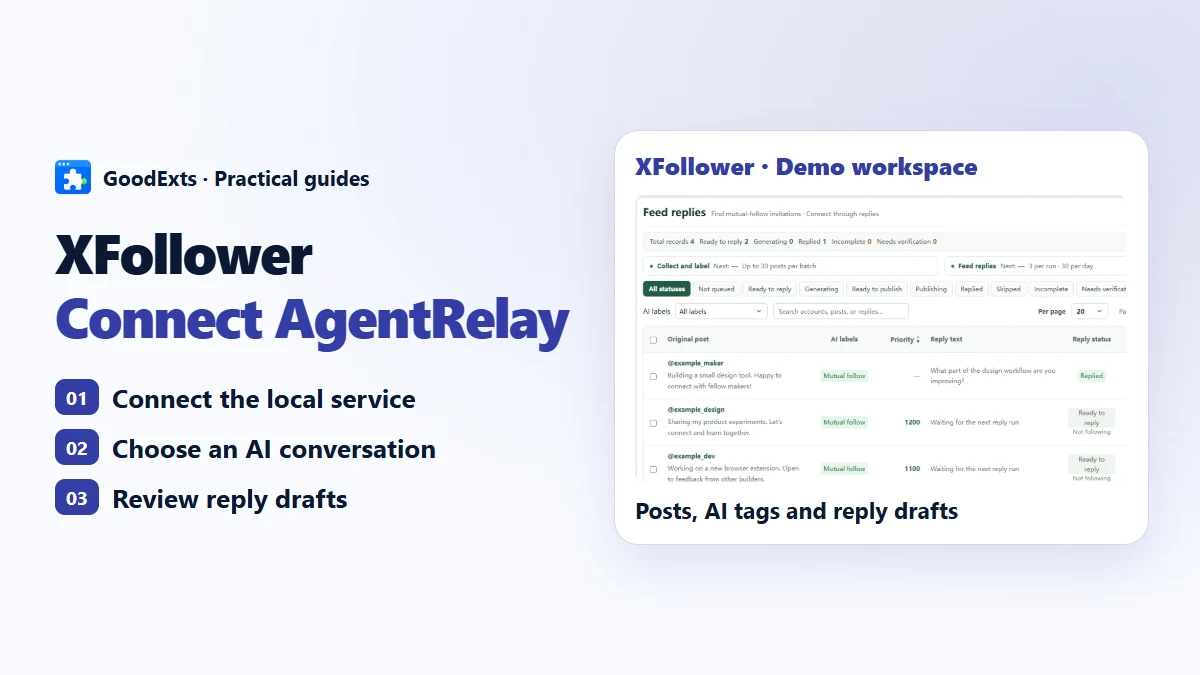
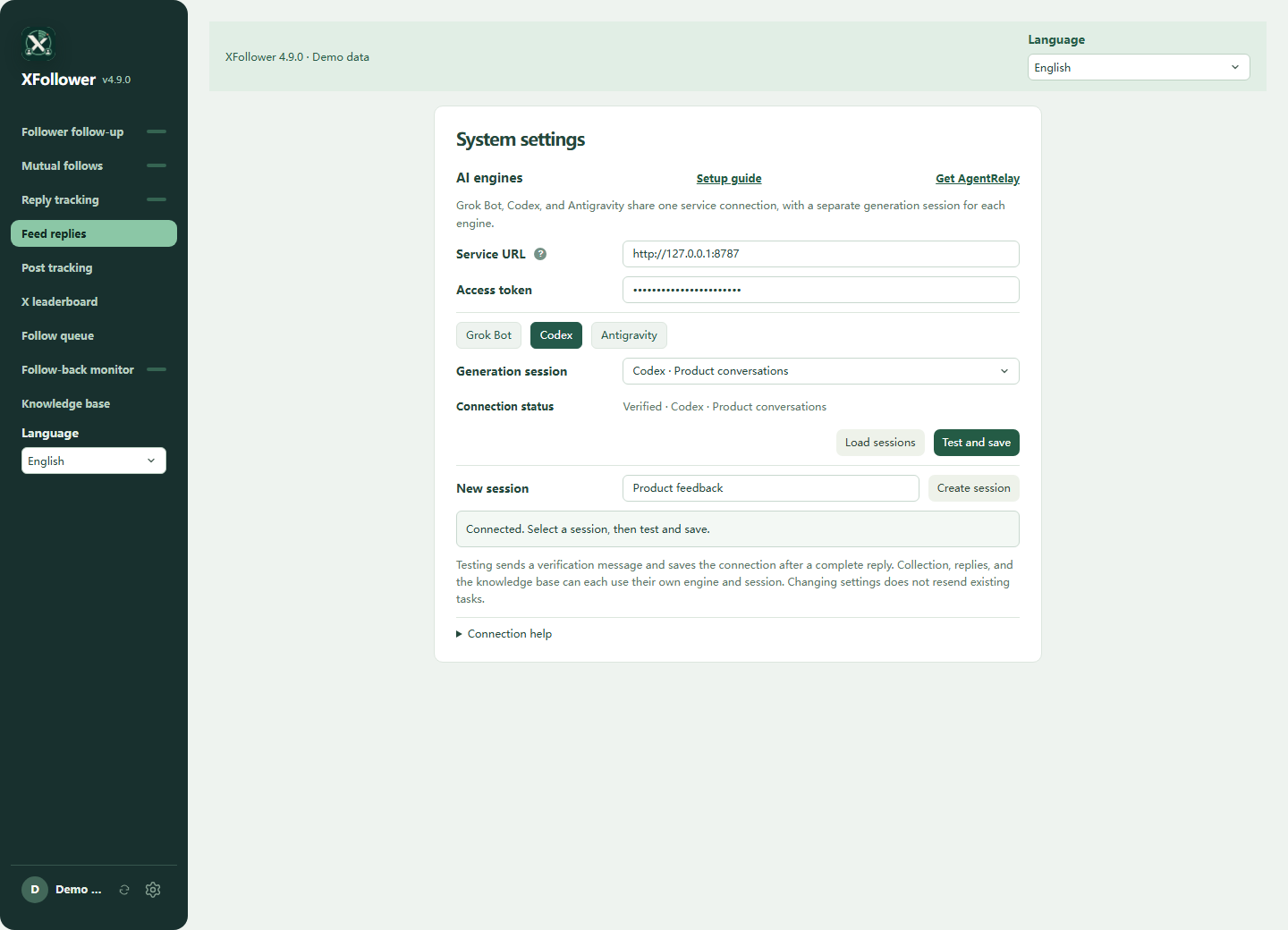
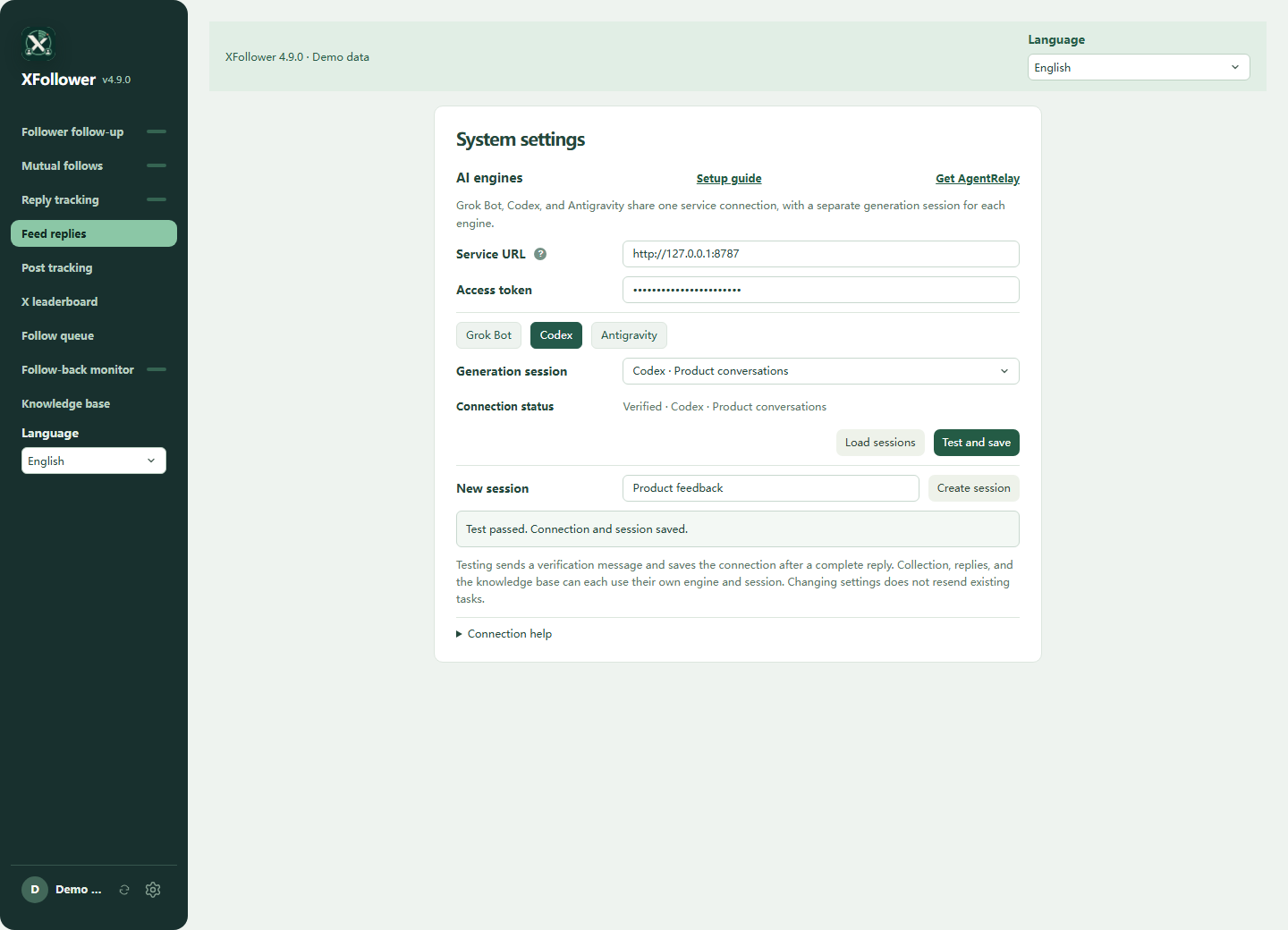
In XFollower, open System settings → AI engines. Enter the AgentRelay address and token once, choose Grok Bot, Codex or Antigravity, read the conversation list, then test and save.
- XFollower collects posts
- AgentRelay connects the conversation
- AI classifies or writes
- XFollower records the result
XFollower handles scheduling and X actions; AgentRelay handles the AI connection. Automatic posting requires the corresponding feature to be configured and enabled. Keep the computer and required clients available and follow platform rules.
Configure XFollower’s AI engines
Start the local AgentRelay service, then select an AI engine and conversation in XFollower. Collection, commenting and knowledge features can be configured separately. Click a screenshot to enlarge it.
1. Start AgentRelay and your AI client
- Check the requirements on the AgentRelay product page, install the Windows x64 or macOS Apple Silicon build, and open AgentRelay.
- Install and sign in to the required client. Grok Bot and Antigravity use their own clients; Codex needs its CLI installed and signed in. Check the engine status in AgentRelay.
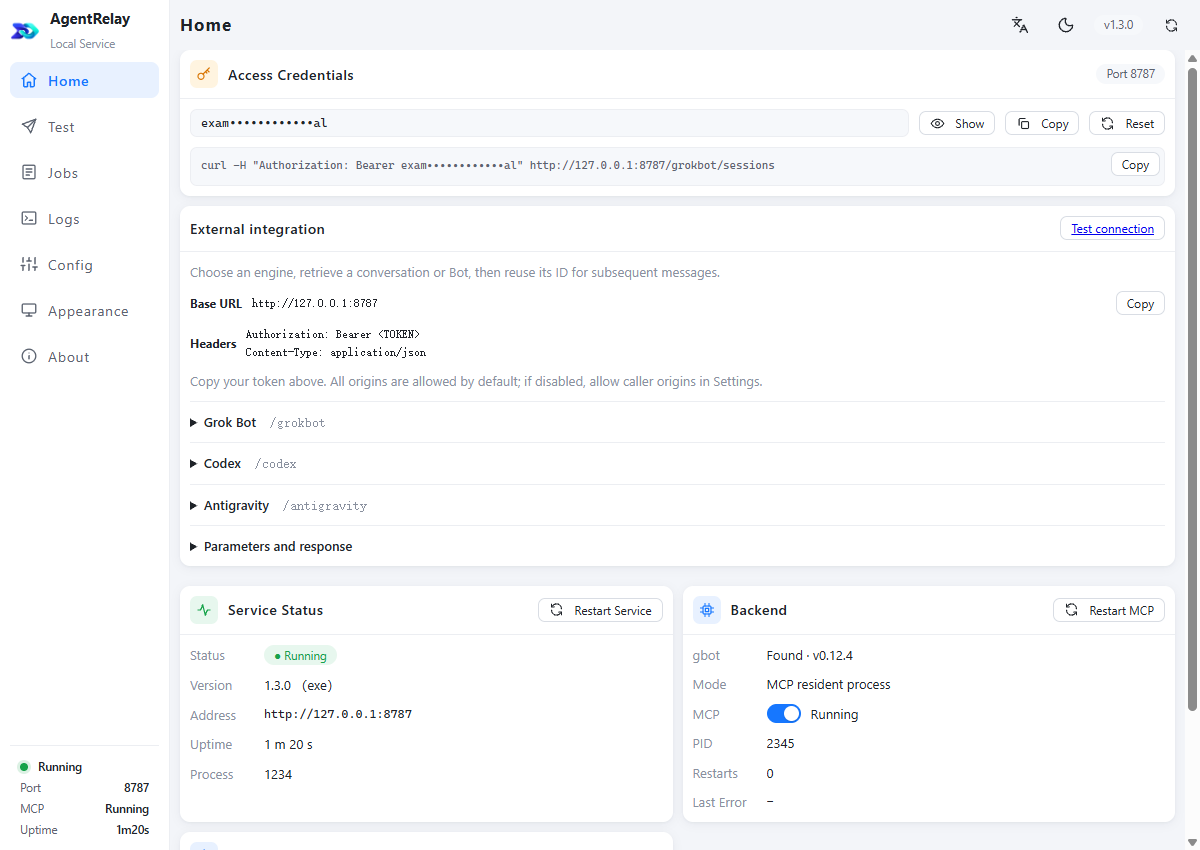
- On the home screen, confirm the service is running and copy its base address and access token. The default is http://127.0.0.1:8787; use the port actually shown. Appearance settings are separate from engine selection.
2. Allow the extension to reach the local service
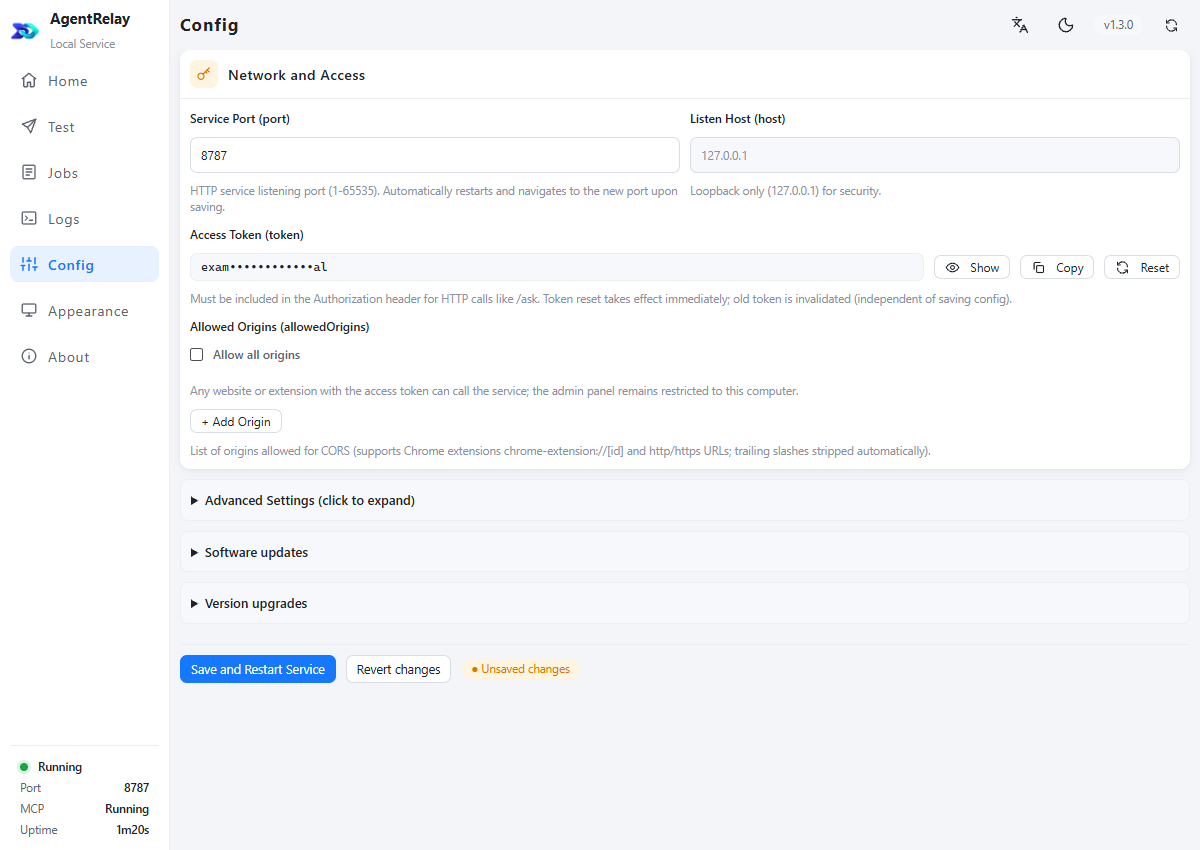
- With AgentRelay’s default Allow all origins setting, you normally do not need to add the extension individually. Business API requests still require a token.
- If you turn that setting off, copy the extension origin from XFollower → System settings → AI engines → Connection help, then add it to AgentRelay’s allowed origins.
- The origin is chrome-extension://your-extension-ID, not an X.com page. Keep existing configuration and tokens. Wait for running tasks before applying a restart.
3. Enter the connection and choose a conversation
- Open System settings → AI engines in XFollower and enter the AgentRelay base address and token. Do not append /codex, /grokbot or /antigravity; XFollower selects the endpoint.
- Choose Grok Bot, Codex or Antigravity, then read conversations. All three share the address and token but retain separate conversation choices.
- Choose the actual conversation title; hover to read a long title. Grok Bot uses an existing Bot. Codex and Antigravity also let you name and create a conversation, then test and save it.
4. Test, save, then reopen to check
- Choose a dedicated test conversation and click Test and save. In normal use, this sends a verification message and consumes the corresponding account’s allowance.
- Wait for the complete reply and the saved-success message. Do not click repeatedly while waiting. Reopen settings and check the engine, conversation and verified status.
- Retest after changing the address, token or engine. This stores an engine default; individual features can still select their own conversations.
5. Route each feature to its own conversation
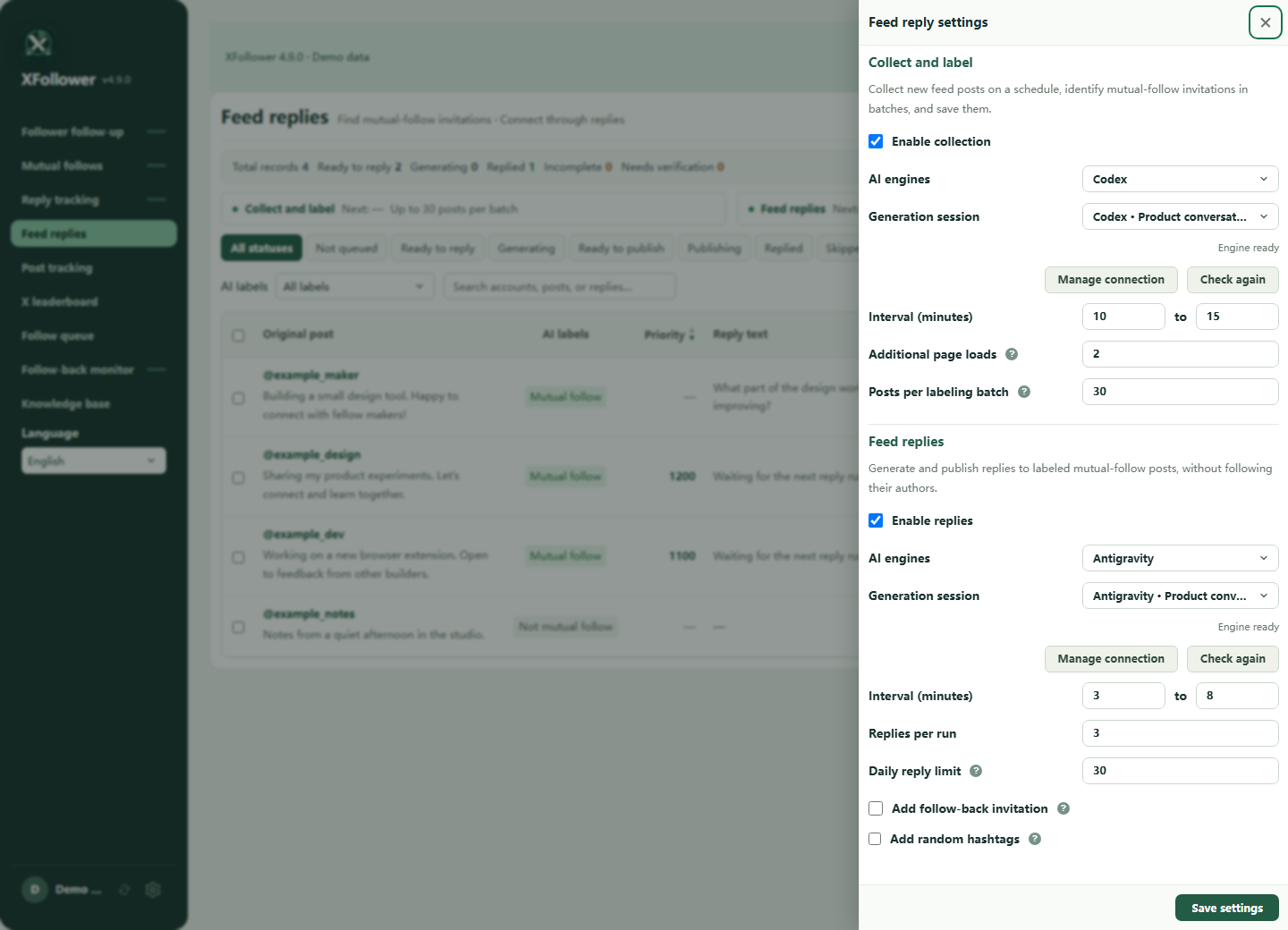
- In Feed replies settings, choose an engine and conversation separately for collection/classification and for commenting. Set intervals, batch sizes and limits. Save, reopen and check.
- Follow-up queue → Grok writing settings selects the comment engine and conversation. Knowledge settings selects the engine and conversation used for automatic learning.
- Use one dedicated conversation for classification and another for the brand’s replies. Inspect a small batch before enabling automatic actions. A successful connection does not enable posting.
What happens when a scheduled task runs?
- XFollower reads posts according to the feature’s schedule, prepares the text, account instructions and writing references, then submits to the selected engine and conversation.
- AgentRelay creates a task and returns its ID. XFollower keeps the original address, engine, conversation and task ID, then waits and queries that task rather than creating another chat on every poll.
- After the complete result arrives, XFollower records tags, reasoning or comment text against the original post. Publication timing and permission follow the feature’s switches, limits and rules.
Recovery and upgrades
After closing the panel, switching engines or restarting the service, query the original task through its original connection first. Pending confirmation does not mean failure. Wait for active tasks before upgrading and preserve local configuration and data. Hide tokens, private paths and business content in support screenshots.
Troubleshoot by symptom
| Symptom | What to check |
|---|---|
| Cannot connect | Check service status, base address, port and browser local-access permission. 8787 is only the default. |
| 401 | Check the current AgentRelay access token, not credentials from an old instance. |
| 403 | If Allow all origins is off, check the extension origin in the allowlist and apply settings as prompted. |
| Engine unavailable | Check the client is running and signed in, then inspect the AgentRelay engine status. |
| Empty list or renamed title | Read conversations again and check the engine. Binding uses the conversation ID, not its editable title. |
| Waiting or pending confirmation | Inspect the original task and conversation in AgentRelay and keep querying its task ID. |
What changes after connecting?
The benefit is a shorter path between account work and AI: fewer manual transfers, a familiar conversation to continue, and results tied to the original post. You can change a supported engine without rebuilding the whole operations workflow. Existing subscriptions may be usable through supported clients under their terms; usage limits and possible AI costs still apply.
The same pattern can connect other compatible tools. Explore the Free Local AI Hub.
XFollower × AgentRelay
In XFollower, open System settings → AI engines. Enter the AgentRelay address and token once, choose Grok Bot, Codex or Antigravity, read the conversation list, then test and save.